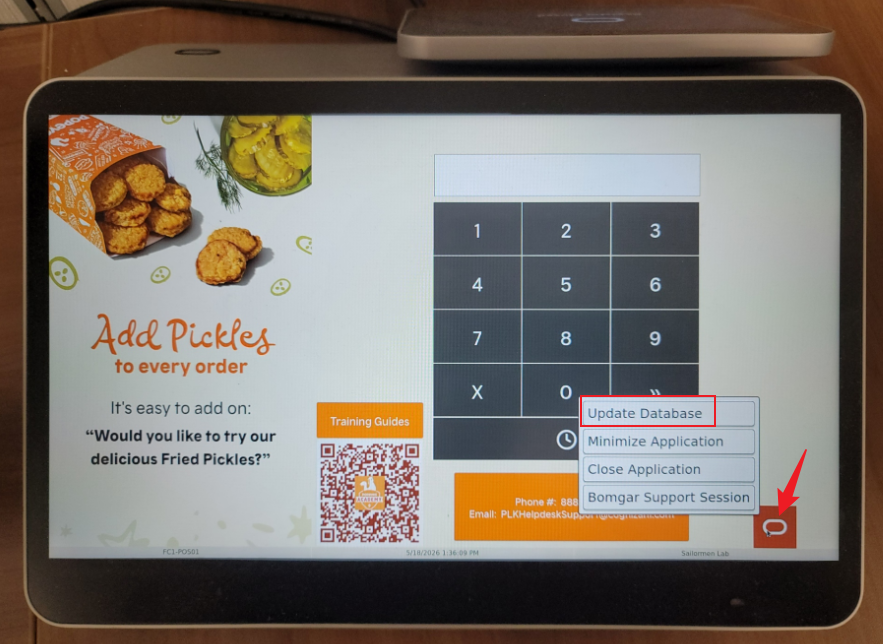
Assign Crew Member ID

May 26, 2026
 11
11
- LOG IN as manager
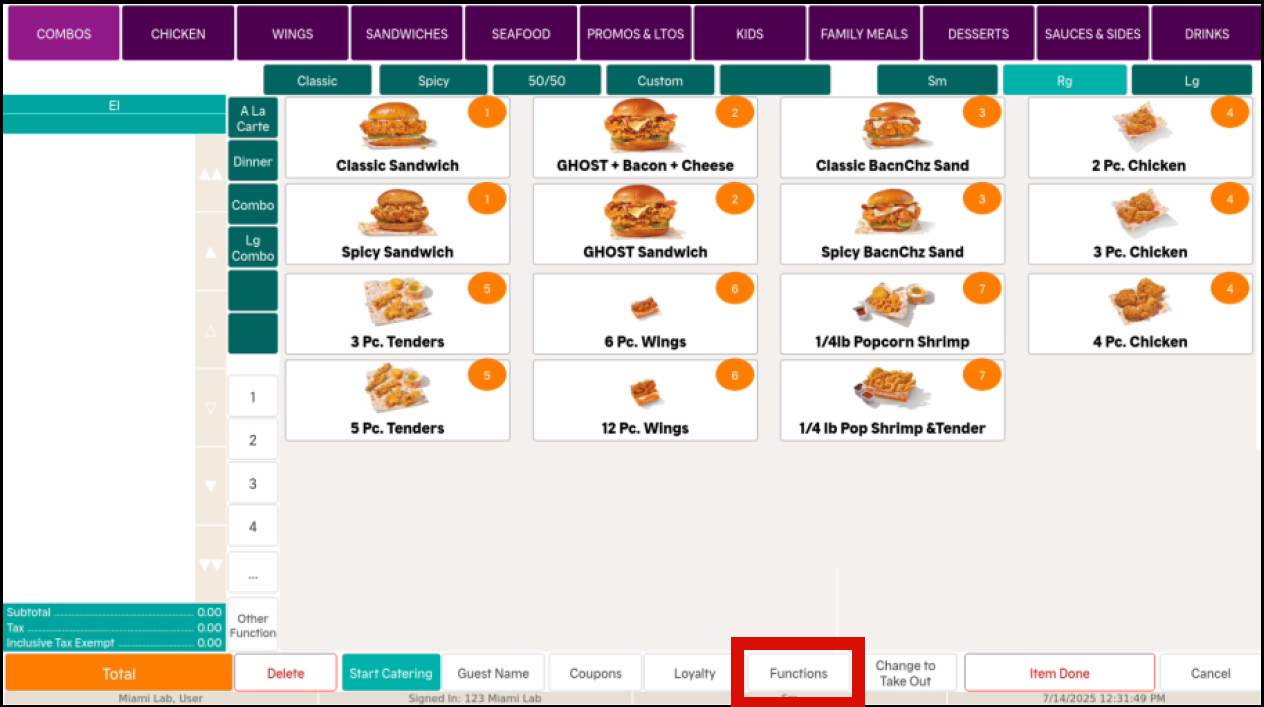
- Click FUNCTIONS on the bottom row of the order screen
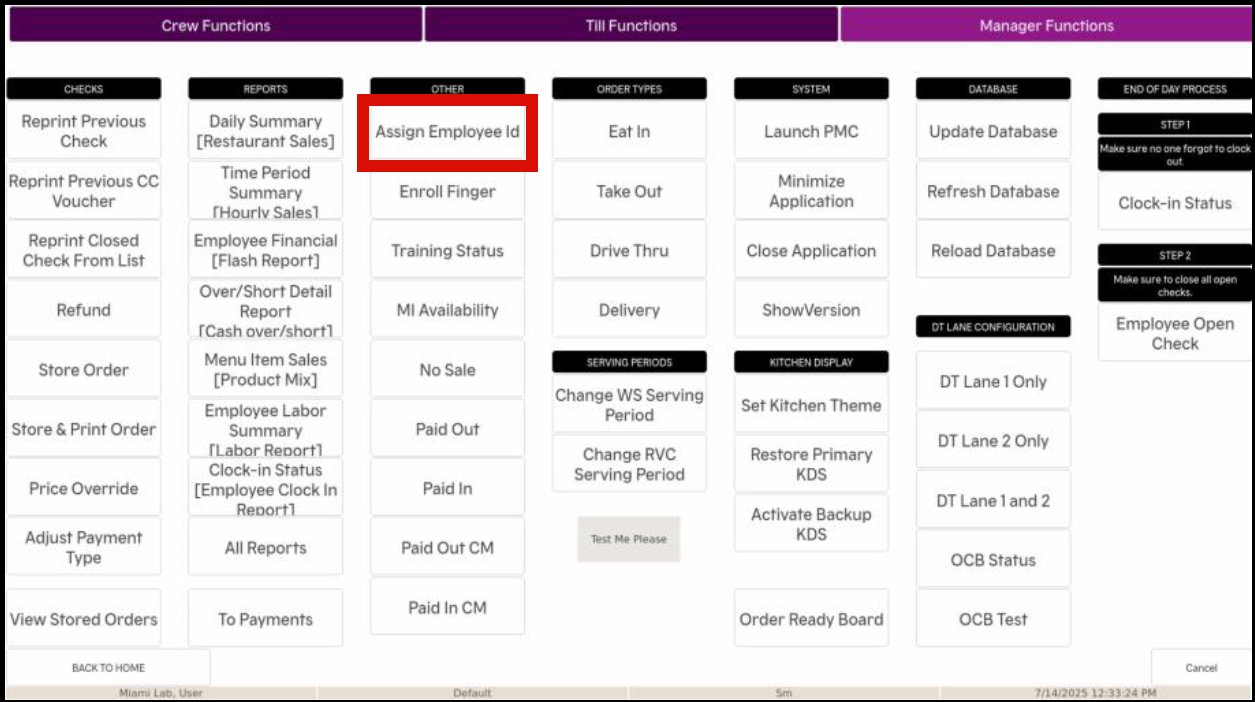
- Under the OTHER column, click ASSIGN EMPLOYEE ID
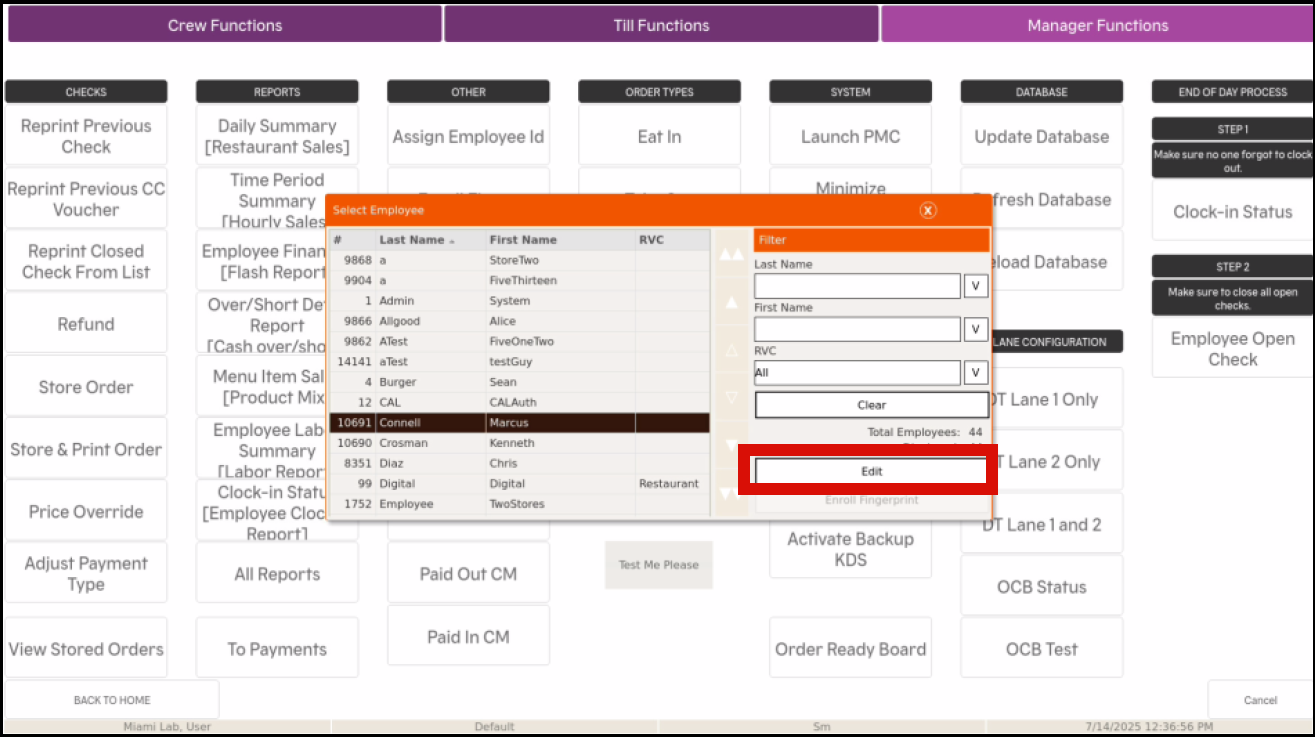
- Search for or select the NAME OF THE EMPLOYEE you wish to enroll
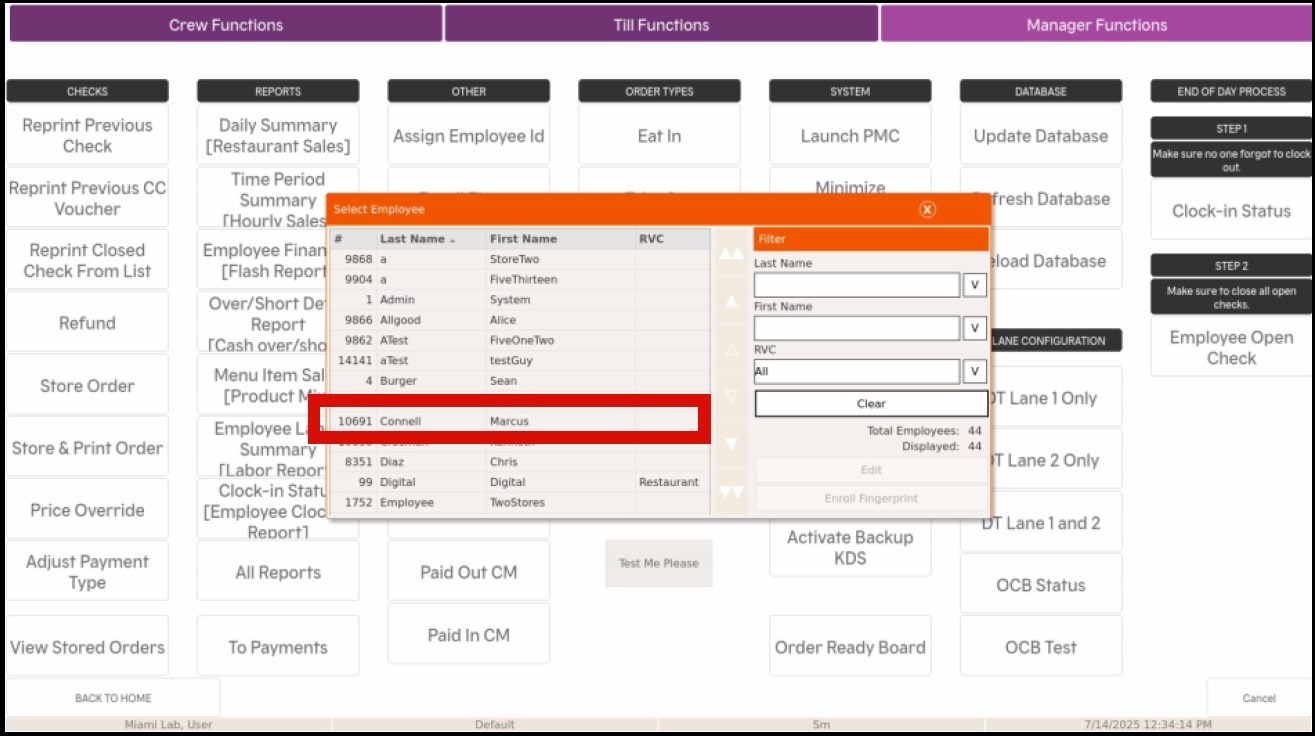
- Select EDIT
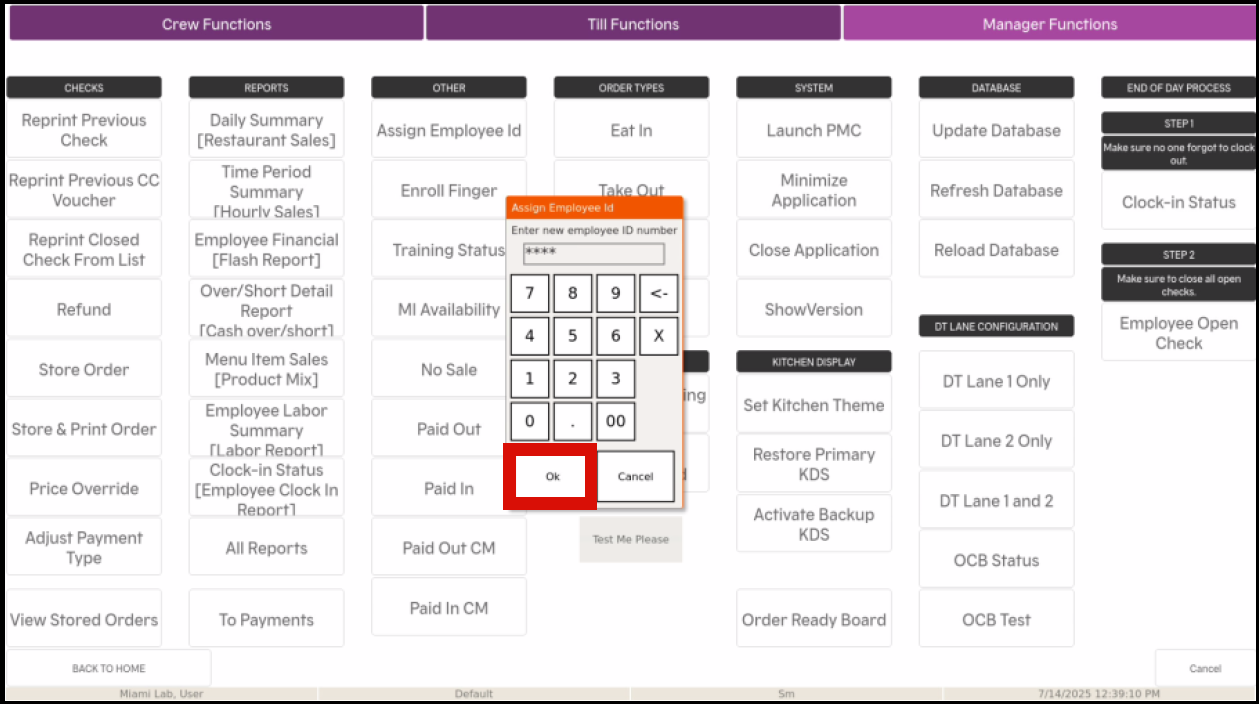
- When prompted, enter the employee's new ID and hit OK. (ID number should be the Employee ID)
- Come back to the main screen and hit UPDATE DATABASE